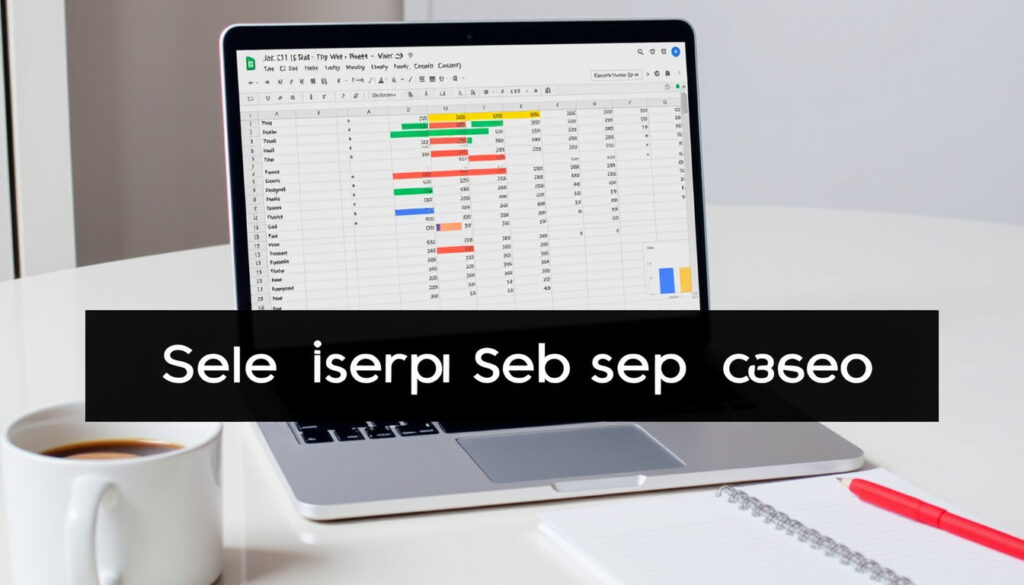
How to Use Google Sheets: A Step-by-Step Guide for Beginners
You’ve just opened a new spreadsheet and are staring at a grid of empty cells. Maybe you’re organizing a budget, tracking a project, or just trying to make sense of a list. Google Sheets is a free, web-based tool that makes this work manageable, and it’s easier to learn than you might think.
Maximum cells per spreadsheet: 10 million · Maximum columns: 18,278 · Maximum rows: 500,000
Quick snapshot
- Free with a Google account (Forbes)
- Real-time collaboration built in (Google Workspace Admin Help)
- 10 million cell limit per spreadsheet (GeeksforGeeks)
- Auto-saves to Google Drive (Spreadsheet Planet)
- Offline editing requires Chrome extension and may not be fully reliable
- Performance with extremely large datasets can slow down
- Privacy of data stored on Google servers is a concern for some users
- Launched in 2006 as part of Google Workspace
- Continuous updates: added macros, Apps Script, and enhanced collaboration
- Explore advanced features: macros, Google Apps Script, and pivot tables
- Integrate with other Google Workspace apps
Five key facts about Google Sheets, one pattern: it’s free, cloud-based, and built for collaboration.
| Label | Value |
|---|---|
| Launch date | 2006 |
| Owner | |
| Platform | Web, Android, iOS |
| Free tier | Yes |
| Max cells | 10 million |
How do you use Google Sheets step by step?
Create a new Google Sheet
- Open Google Sheets at sheets.google.com or via Google Drive.
- Click the + button to create a new blank spreadsheet.
- Alternatively, choose a template from the template gallery.
First-timers often feel lost seeing the grid. But the learning curve is gentle — you can start typing data immediately.
Enter and format data
- Click a cell and type your data. Press Enter to move down, Tab to move right.
- Select cells and use the toolbar to format: bold, colors, text alignment, and number formats.
- Resize columns by dragging the column header borders.
Google Sheets supports filter views to sort and filter data without affecting others — a feature highlighted by Google Workspace Admin Help.
Use basic formulas
- Start any formula with an equals sign (
=). =SUM(A1:A10)adds all numbers in the range.=AVERAGE(B1:B10)calculates the mean.=COUNT(C1:C10)counts numeric entries.
As you type, Sheets offers formula suggestions — a time-saver for beginners (Google Workspace Admin Help).
Share and collaborate
- Click the Share button in the top-right corner.
- Enter email addresses or generate a link.
- Set permissions: Viewer, Commenter, or Editor.
- Multiple people can edit the same sheet simultaneously — changes appear in real time.
Real-time collaboration is Google Sheets’ standout feature. According to Forbes, this works without any subscription, unlike Excel’s collaboration that requires a Microsoft 365 plan.
For a new user, the first sheet is the hardest. Once you create, enter data, try a formula, and share it, the rest is refinement. The pattern: start small, then expand.
What is the difference between Excel and Google Sheets?
Pricing and accessibility
- Google Sheets is free with a Google account.
- Microsoft Excel requires a subscription (Microsoft 365) or a one-time purchase.
- Sheets runs entirely in a browser; Excel is a desktop app with web and mobile versions.
Forbes notes that Google Sheets enables real-time collaboration without requiring a subscription, while Excel’s collaboration is tied to OneDrive and a paid plan.
Features and functionality
- Both tools share core formulas (SUM, AVERAGE, VLOOKUP), but Excel has advanced functions like XLOOKUP and Power Query.
- Google Sheets offers filter views and formula suggestions natively.
- Excel supports macros (VBA) and add-ins, while Sheets uses Google Apps Script and recorded macros.
According to Spreadsheet Planet, Sheets is better for collaboration, Excel is stronger for advanced data analysis.
Collaboration
- Google Sheets: real-time editing, comments, version history built in.
- Excel: limited real-time collaboration via OneDrive; co-authoring is available but less seamless.
Google Workspace Admin Help explicitly compares collaboration features, showing Sheets’ simultaneous editing as a key differentiator.
Offline use
- Sheets: offline mode via Chrome extension, but limited functionality.
- Excel: full offline capability on desktop, no internet needed.
Digital Trends describes Sheets as web-based with a mobile version but no desktop option, while Excel is a desktop app with mobile and web access.
Advanced capabilities
- Excel: Power Query, advanced pivot tables, VBA macros, and xlookup.
- Sheets: Google Apps Script, macros, and integration with Workspace apps.
GeeksforGeeks states Excel supports 1,048,576 rows by 16,384 columns per sheet, while Sheets caps at 10 million cells.
Three key differences, one pattern: Sheets prioritizes accessibility and collaboration; Excel prioritizes depth and power.
| Feature | Google Sheets | Microsoft Excel |
|---|---|---|
| Pricing | Free (Forbes) | Subscription (~$6-$10/month) or one-time purchase |
| Real-time collaboration | Native, simultaneous (Google Workspace Admin Help) | Via OneDrive, requires subscription |
| Offline mode | Limited (Chrome extension) (Digital Trends) | Full offline desktop functionality |
| Max data per sheet | 10 million cells (GeeksforGeeks) | 1,048,576 rows × 16,384 columns |
| Advanced formulas | Basic set + Apps Script (Google Workspace Admin Help) | XLOOKUP, Power Query, VBA macros |
| Auto-save | Automatic to Drive (Spreadsheet Planet) | Depends on OneDrive setup |
Sheets wins on price and collaboration; Excel wins on power and offline capability. For a beginner, Sheets is the smarter starting point — you can always switch to Excel later if you outgrow it.
Is Google Sheets hard to learn?
Learning curve for beginners
Google Sheets is widely considered easier to learn than Excel. Coursera describes Sheets as ideal for beginners, while Excel has a higher learning curve. The interface is clean, and the toolbar is minimal.
Basic functions are intuitive
- Typing data and using simple formulas like
=SUMfeel natural. - Built-in formula suggestions help avoid errors.
- Free templates reduce the need to start from scratch.
Forbes notes that Sheets’ real-time collaboration also lowers the barrier — you can ask a friend for help within the same document.
Resources for learning
- Google’s own Workspace Admin Help provides official guides.
- YouTube is full of free tutorials for beginners.
- Community forums like Stack Overflow and Reddit offer quick answers.
The implication: most people can become productive in Sheets within an hour. The learning curve is shallow, and the payoff is immediate.
What is the disadvantage of Google Sheets?
Limited offline access
Offline editing requires the Chrome extension and must be set up in advance. It’s not as robust as Excel’s full offline capability. Digital Trends confirms that Sheets lacks a dedicated desktop app, making it reliant on internet connectivity.
Fewer advanced features
- No Power Query, VBA, or advanced pivot tables.
- Macros are limited to Google Apps Script.
- Some Excel functions (XLOOKUP, INDIRECT in certain contexts) are missing or behave differently.
Spreadsheet Planet notes that Excel is stronger for advanced data analysis, while Sheets is designed for collaboration and simplicity.
Performance with large datasets
Sheets has a hard limit of 10 million cells. When you approach that limit, the sheet can slow down significantly. GeeksforGeeks confirms the 10 million cell cap, which is fine for most personal and small business use but limiting for enterprise data.
Privacy concerns
Data is stored on Google’s servers. For sensitive information (e.g., financial records, medical data), this may be a dealbreaker. Google’s Workspace Admin Help outlines data handling policies, but some organizations prefer on-premise solutions like Excel.
If you need heavy data processing or offline reliability, Sheets will frustrate you. For a beginner or small team, these disadvantages rarely matter.
Upsides
- Free to use
- Real-time collaboration
- Auto-save to Drive
- Accessible on any device
- Easy to learn
Downsides
- Limited offline access
- Slower with large datasets
- Fewer advanced formulas and tools
- Privacy concerns with cloud storage
- No desktop app
How to use Google Sheets formulas?
Basic arithmetic formulas
All formulas start with an equals sign. You can reference cells by their column letter and row number, e.g., =A1+B1.
=SUM(A1:A10)— adds up all numbers in the range.=AVERAGE(B1:B10)— calculates the mean.=COUNT(C1:C10)— counts numeric entries.
Google Sheets provides formula suggestions as you type, a feature highlighted by Google Workspace Admin Help.
Using cell references
- Relative references:
=A1+B1— change when copied to another cell. - Absolute references:
=$A$1+$B$1— stay fixed when copied. - Mix them:
=A$1+$B1for partial locking.
Common functions for beginners
Five essential functions, one pattern: they all start with = and use ranges.
| Function | What it does | Example |
|---|---|---|
| SUM | Adds numbers | =SUM(A1:A10) |
| AVERAGE | Calculates mean | =AVERAGE(B1:B10) |
| COUNT | Counts numeric entries | =COUNT(C1:C10) |
| MAX | Finds largest value | =MAX(D1:D10) |
| MIN | Finds smallest value | =MIN(E1:E10) |
Error handling
#DIV/0!— you’re dividing by zero.#NAME?— misspelled function name.#VALUE!— wrong argument type.#REF!— deleted cell reference.
These errors are normal. Check the formula bar and fix the reference or function name.
How to use Google Sheets on phone?
Download the Google Sheets app
Basic navigation on mobile
- Tap a cell to edit; press Enter to move down.
- Swipe to scroll through the spreadsheet.
- Use the toolbar (bottom or top) for formatting, insert charts, and more.
Digital Trends notes that Sheets has a mobile version but no desktop app — the mobile app is a companion, not a replacement for the web version.
Editing and formatting on the go
- Add rows and columns, apply bold or colors, and insert formulas.
- Voice typing is available on Android for hands-free entry.
- Charts and conditional formatting are supported.
Syncing with desktop
All changes sync automatically to Google Drive. Start editing on your phone, continue on your laptop — no manual save needed. Spreadsheet Planet confirms that Sheets auto-saves to Drive, making cross-device use seamless.
For a user who needs to check numbers or make quick edits while commuting, the mobile app is a lifesaver. It’s not for heavy data entry, but it’s more than enough for most real-world tasks.
“You can add, edit, or format text, numbers, or formulas in a spreadsheet.”
— Google Workspace Admin Help
“Google Sheets is a web-based spreadsheet tool created by Google and part of Google Workspace.”
— Forbes
For a more in-depth comparison between Sheets and Excel, check out our detailed Google Sheets tutorial that covers advanced features and mobile usage.
Frequently asked questions
Can I use Google Sheets offline?
Yes, with the Chrome extension and offline mode enabled in Drive settings. However, functionality is limited compared to the online version. Digital Trends notes that Sheets lacks a desktop app, making offline use less robust than Excel.
How to share a Google Sheet?
Click the Share button in the top-right corner. Enter email addresses or generate a link. Set permissions to Viewer, Commenter, or Editor. Real-time collaboration is automatic.
How to import Excel files into Google Sheets?
Go to File > Import > Upload. Select your Excel file. Sheets converts it to its native format. Formulas and formatting are preserved, though some advanced features may not transfer.
How to create a chart in Google Sheets?
Select the data range, then click Insert > Chart. Sheets suggests a chart type. You can customize it in the Chart Editor sidebar. Changes update in real time.
How to protect cells in Google Sheets?
Right-click a cell or range, choose Protect range. Set permissions to restrict editing. You can also protect entire sheets from the Data menu.
Is Google Sheets really free?
Yes, for personal use with a Google account. No subscription required. Forbes confirms that Sheets enables real-time collaboration without a subscription, unlike Excel.
For a beginner, the choice is clear: start with Google Sheets. It’s free, easy, and collaborative. If you later need Excel’s advanced power, you can migrate. But for 90% of everyday tasks — budgeting, tracking, planning — Sheets is all you need.
More related posts
 One Piece Arcs in Order: Complete 2025 Guide
 Tiger Woods Net Worth (2026): How He Built a $1.5 Billion Fortune
 How Many Fluid Ounces in a Gallon? (128 to Be Exact)
 Easy Meal Prep Ideas: Quick Recipes and Science-Backed Tips
 Phillies vs Nationals Player Stats: August 15, 2025 Game
 Ron Howard Movies and TV Shows: Full Guide to His Career